Quick Setup
Here we provide the setup instructions for the minimal essenstial components of CREW to help you get started. The following should be ran in a base conda environment in a bash shell. For Windows machines, we strongly recommend using git bash.
1) Clone the CREW github repository:
It should have the following structure:
2) Create a Builds folder under
crew-dojo.
Download game environments for your OS from drive
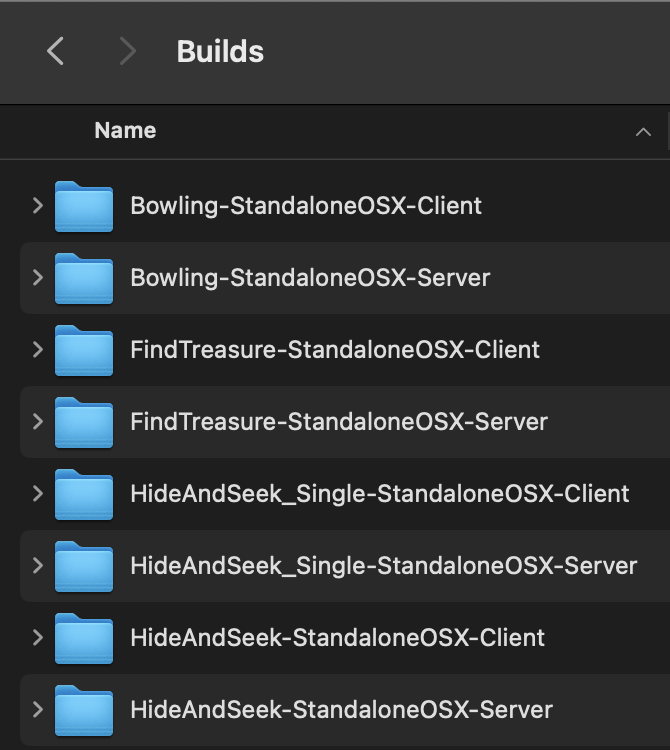
and move them under crew-dojo/Builds/. Uncompress the zip files so that it has the following
structure:
3) Setup crew-dojo:
a) Download and install Docker Desktop.
This is essential for networking multiplayer games.
b) Install go v1.18:
Visit the download page go.dev.dl, find version go1.18 under
Archived Versions. Download the installation file corresponding to your machine OS and
architecture. Install go and make sure it is the correct version :
c) While docker is up and running, install and run the image for networking:
Under crew-dojo/Nakama, run:
If successful, it should be running as follows in docker: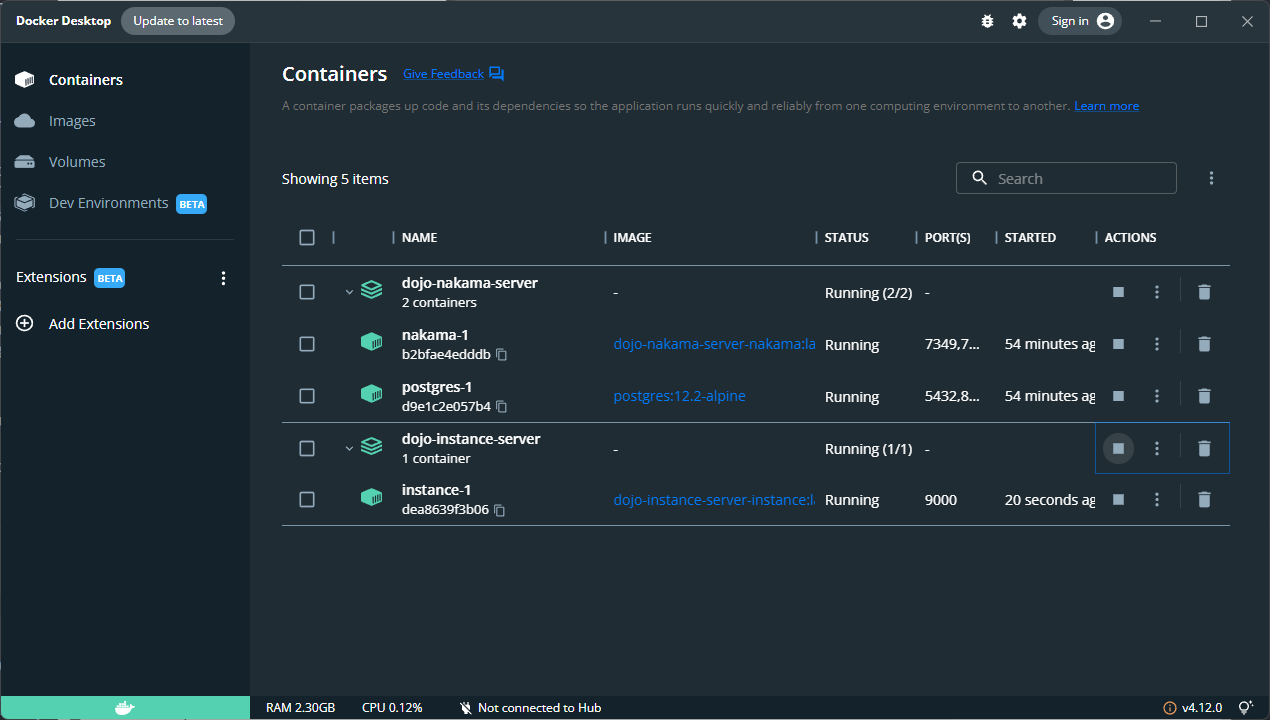
4) Setup crew-algorithms:
Under crew-algorithms, run:
This will create a conda environment named crew and install audio-related pakages. For the
rest of the dependencies we will use poetry. To install it,
activate the crew environment and use the official installer:
A message should appear after the installation indicating poetry's bin directory. Typically for Linux and
OSX, it is "$HOME/.local/bin"; for Windows it is $APPDATA\\Python\\Scripts. Add
this directory to your PATH environment variable and append this command to your shell
configuration file. For instance, add export PATH="$HOME/.local/bin/:$PATH" to your
~/.bashrc file. Remember to source the file afterwards:
For Windows, it may be easier to do this manually.
Check poetry can be properly called with:
Next, you may need to activate crew again withconda activate crew if it is not in the
environment. After that, simply run:
If you encounter any issues, check out Troubleshooting.